see also the section about u3a email below: Managing Google Workspace
This 'group' is an admin group run by u3a volunteers who contribute articles and assemble a newsletter to be circulated, around the 2nd Friday of each month. Anyone may offer to:
- report on what their group is doing, send a photo of something they've made, publicise a forthcoming item of interest such as a fete or a course. Reports, news, articles and all kinds of locally relevant notices are likely to be accepted. To catch the next issue please send content to the newsletter editor (below) by the 2nd Tuesday of any month.
- write a piece about anything of interest to members.
- collate the above and news about what is going on - a role, described below, of the 'newsletter editor'.
- be responsible for updating a chosen part of this u3a website - such as making changes to groups, group leadership, forthcoming meetings, courses and benefits to members.
- print and post the newsletter to members who do not have email. If you can handle this role be assured that it comes with a printer, ink, stamps and all supplies. As most of our members do have email there are very few newsletters to post and the role should take an hour per month.
- use Beacon, the secure u3a email system to email the newsletter to all our members on the Friday before the monthly speaker meeting.
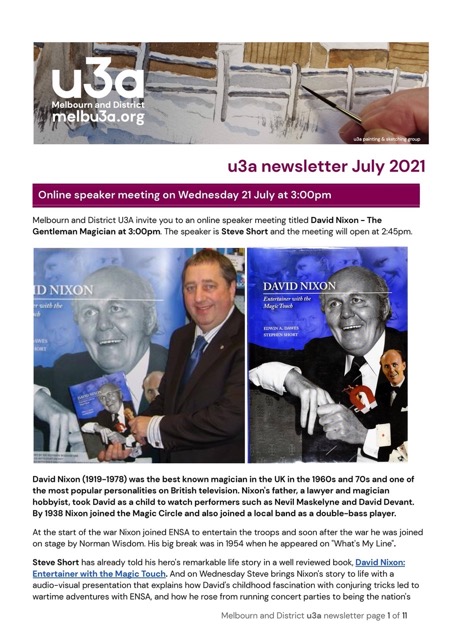


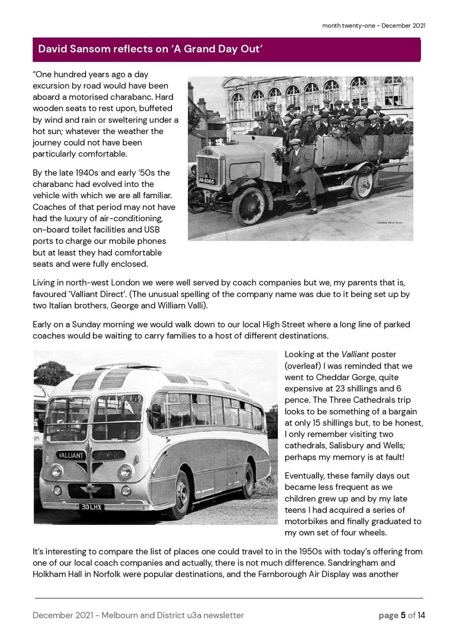

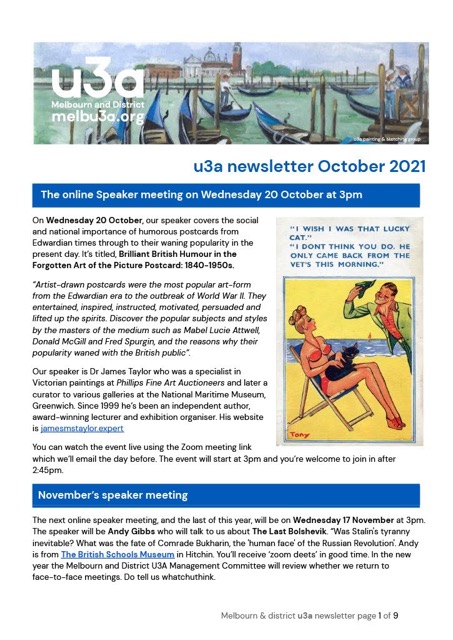

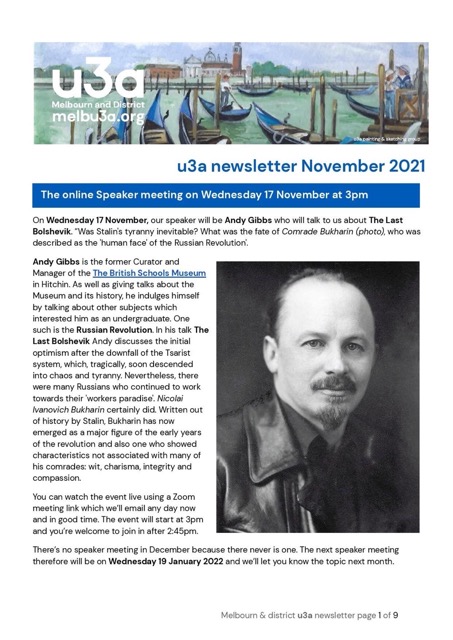

how the newsletter is done
In the spirit of sharing knowledge, ahead of a time when the current editor retires, the following describes how the newsletter is put together.
- Please know that past and current newsletters are stored online in our Google Workspace. This allows all of the u3a committee to login with their @melbu3a.org address to access the newsletters. This is in preference to the files existing on someone's computer.
- To start a new newsletter go to your browser and enter docs.new. This is one way to start a new Google Doc - otherwise find the last newsletter and select File > Make a copy. Name the new file 202x-0x Melbourn and District newsletter and delete pretty much everything in it. Add text, pictures and headings. Add links to websites, maps, and pdf files stored in Google Drive.
- Click Share and set the file to be readable by everyone in the world. Copy the newsletter's Google Doc share link and send this link to all who have contributed as well as members of the committee for feedback. The newsletter link will be / should be readable by everyone - but only if they have the very long link.
- Print and post copies of the newsletter to the handful of people who do not use email (see below).
- Copy the contents of the entire newsletter file and paste it into the online Google Docs file called 'the current newsletter'. This file will appear on the website so it's wise to remove private information.
- Login to Beacon, our secure email database and create a message, with the newsletter link, to go out to all current u3a members. Send this message first to yourself for a look-see and then to all members. The Beacon database is aware of couples who share an email address so they will receive one copy.
how to print and send the newsletter to selected addresses
- A printable copy of this month's newsletter must be sent to the handful of people who do not use email. This print edition is simply a copy of the newsletter with useless underlined Internet links removed from the text. By useless I mean that that some of the newsletter items will offer no benefit to a user without email. To do this open the Google Doc for the newsletter, find 'Make a copy' in the menu and rename it say '2025-03 PRINT newsletter'. Now you can remove redundant items to end up with a newsletter with 6 - 10 sides.

Login to Beacon, our secure email database and go to Addresses Export. You really only need do this every few months. Then go to the bottom of the members list and select 'Without Email'. Click the button labelled Download Labels. You'll receive a PDF which you can print offline. The settings shown work with certain sizes of Avery 21 labels per sheet - 3 across and 7 down the page. If you have less than 10 addresses to post to you can get two sets of addresses labels per sheet - reverse a printed sheet and print again.
- Get printing and stapling as you prepare stamped, stickered A5 / DL envelopes to send. Aim to post the newsletters on the Wednesday or Thursday before the next speaker meeting.
- The printer is an HP Officejet Pro 9010 series filled with 90 gsm paper. Thicker paper is optional but it may jam less as well as allow double sided printing. Replacement ink cartridges are sent by HP Instant Ink to the registered owner. HP knows which inks the printer needs. See the subscription plans available.
- We adjust our monthly ink subscription according to how many sheets that we need to print and how many unused pages we have rolled over from last month's subscription. For example, printing 10 newsletter copies x 8 sides requires a subscription for 100 sides a month. Some months you'll need to increase this to accommodate extra page printing - but you can revert this for the following month to save money. Instant Ink offers considerable savings over bought cartridges.
the role of the u3a website editor - how this website is done
The National u3a supplies M&D u3a with a 'Wordpress' website running on their servers. Using a password we can login and create the pages and content for the world to see. This website uses a u3a template (a theme called 'siteworks') that suits an organisation like ours with its groups, group leaders and notices. The website editors role is to fill in the gaps, not create typos and update the info over time.
the website is made to minimise maintenance - the monthly task
There are a few tasks that need attending to each month: The 'u3a Events' section will need a new speaker meeting listing.
- Go to the Dashboard and update any groups and contact details.
- Go to the Dashboard and create a new Event for a forthcoming speaker meeting. The Event category should be 'Meeting". The new Event has obvious fields where you add the event date, time and meeting location. In the Group field, enter 'monthly speaker meeting. Notice that typically the big headline contains the speaker name and title; the text describes the topic and speaker and their website address; there's a large image; there's a smaller featured image plus date and venue information. For the big headline at the top enter Speaker Name: Title. Just below that enter some words about the speaker or topic. Add a copyright free picture too. Add a featured image if you can.
- Each month, at the same time as creating a new event for the next speaker meeting we also need to briefly edit any recent past speaker meeting event and perhaps change the wording so that it reads as a past event. You might need to change the Event category from 'meeting' into 'meeting - past event'. Just check that any recent past speaker meetings appear on the 'group page' for 'monthly speaker meeting' and seen here.
- Each month go to the newsletter page of this website to see that the current newsletter displays there. If the current newsletter is not shown, go to your Google Workspace > Newsletters folder. Find the Google Doc labelled 'Current Newsletter' and, in one go, paste in the words and pictures from the proper current newsletter into that Google Doc. Finally remove sensitive detail from the website version of the newsletter (such as addresses and telephone numbers).

You'll see this menu on top of every part of this website. We've made the menu as un-detailed as possible. The Welcome or 'home' page is entirely aimed at new people or non-members. The newsletter is our main news source so the Notices page lists only special events that are going on. The 'Notices' page lists current events followed by the range of benefits that u3a members need to know about such as external courses. The 'Newsletter' page contains an embedded link to a Google Doc called 'the current newsletter' - so this page updates whenever I paste in the current news in Google Workspace. The 'Join' page contains an embedded link to a Google Form called 'join M&D u3a'. You can edit the Google Form or the Google Doc by searching in your role@melbu3a.org Google Workspace drive.

You'll see this 'footer' menu at the bottom of every part of this website. This has links to important and less important items which would distract from the header menu.

A 'dashboard' (showing here on the left) is what we see when we login to this website. To add information and have it appear in the right place on the website, you need to put it in the correct section.
u3a Notices - a forthcoming AGM or fete or excursion listing is a good example of a u3a 'notice'. Notices appear at the top of the 'notices' page. 'Notices' are special in that they have an expiry date and thus will no longer display when that date has passed.
u3a Events - this section lists the monthly speaker meetings past and future. I've chosen to keep past speaker meeting listings because I feel they help us. The headline contains the speaker name and title; the text describes the topic and speaker; there's a large image; there's a smaller featured image plus date and venue information. If you add a u3a event ensure that you add an Event Category to each listing - speaker meetings need the category of 'Meeting' or 'Meeting - past event'. Do this and they'll appear and disappear correctly.
u3a Venues - this section lists the public places where our groups meet. Each venue item has, as a minimum, embedded Google maps, address info, photos as needed, booking info, public transport and local parking options. Venue information is required because it is used on every Group listing
u3a Contacts - this section lists the committee members and group leaders so that they can be contacted wherever they appear on this website. A setting (in u3a settings) ensures that instead of showing a personal email address we show a contact form instead.
u3a Groups - this section is where we edit the details about each of our interest groups. As well as information about how to join the group there's space for a photo and more to promote interest in the group. I've taken an untypical approach and included the u3a committee, and some other roles as 'groups'.
Posts - here we add items that don't obviously belong elsewhere and will appear on the menu page called notices. A subject for a new 'post' might be information an organisation we connect with, extra curricular benefits that the u3a offers; the u3a discount scheme; u3a education events; u3a support for group leaders; u3a magazines; u3a newsletters; how to borrow our projector or use our 'zoom' licence. If you add to these be sure to add the category 'benefits' which will ensure they display on the notices page. There are other or random 'posts' in this section for example, our constitution and policies (categorised as 'admin'). If you add anything like this be sure to make a link to it either in the footer or some other place.
Media - this section brings together and lists all the photos and media used across the website pages. If you need to change a photo go to the page where it appears and change it there. Otherwise I recommend leaving 'media' untouched, mainly because changing a photo can lead to a blank on a page somewhere. Or get a WordPress plugin to manage the media library as only a plugin will 'know which photos are redundant'.
Pages - the menus in the website header and footer link to all the pages in this section. Our pages use tricks like 'query loops' to pull in lists of groups or events as needed. Think of pages as the shelving of the website. Think of the groups, events, contacts, notices and posts as the products that live on those shelves.
Maintenance of this website
The website editor doesn't have the urge to update this website with everything that's going on - indeed the newsletter does that in one single document. Instead the website is designed as a brochure to let anyone know what we do and perhaps to join us.
Please write to the editor with suggested edits and low maintenance, 'timeless information'. Please offer to maintain a section of this website and keep it up to date. Send requests to remove detail, a face for example, to Roger F at newsletter@melbu3a.org.
Group information will be added to the group's page. Group information that comes and goes will be added as an event belonging to the group. If your group wishes to invite the entire membership to a one-off function this will be added as a notice to appear on the notices page. Please submit photographs of individuals that are happy with this or can't be identified. Photographs found on eg flickr.com or unsplash.com are more likely to have a licence to re-use them than those found on Google or Facebook.
Managing emails - the Google Workspace
Because of our charity status we have secured a valuable Google workspace account. All the validation (entering our charity number and other details) has been done via Google for Non-profits. The start page for our Google Workspace is admin.google.com. Only a few people need to login here.
Everyone with a public role at this u3a has an email address such as myrole@melbu3a.org. This email address obscures your private email address and so it can be used safely in public communication - if we don't do this your private email address is likely to get spammed and overloaded and you don't want that. We do this in two ways:
- We set up a forwarding address on Google Workspace. The page needs an admin account to access - it is hidden away at https://admin.google.com/ac/apps/gmail/routing. Here you'll find a section called 'Email forwarding using recipient address map'. You can add anyone's email to this list of alias addresses. We use the form 'canoeing@melbu3a.org > private-email-address'. You can invent any name@melbu3a.org and any email received at that name will go to the home email address you enter. There's no need to abbreviate or add hyphens to the name. Do consider making duplicates (eg computer@melbu3a.og AND computers@melbu3a.org). Do be precise. Remember to save the list when done editing. The emails so set up are not 'logins' - they are forwarding addresses.
- We can instead set up a user account which provides a Gmail-style login. When these users login they can manage an exclusive email account. The newsletter, the chair and others who receive a lot of official email might prefer to have this. Their replies will appear to the receiver as coming from this official @melbu3a.org account. These user accounts can have multiple @melbu3a.org aliases (eg the treasurer might run a group and have group mail sent to this one account). These users can have their email forwarded - as just described - so that they receive all email at their private email address too.
- Google Workspace allows us to set up 'groups'. When people join the committee they need to be added to a group. It helps but is not essential.
- You cannot login to gmail.com with a forwarding address such as canoeing@melbu3a.org. You'd need a full user account to do that. If you have been told that a user account has been made for you you can login at gmail.com and manage your emails. You'll not be sent a initial password so as you don't have the password click 'forgot password' and then your home address will receive instructions. If you've taken over a role such a chair@melbu3a.com you can't access this account until the change has been made at Google Workspace.
| Status: | Active, full but can join waiting list |
| Group email: | u3a newsletter & u3a website group |
| When: | Monthly on Tuesdays 2nd Wednesday monthly |